FleetSnap setup guide
Install FleetSnap Turo Capture in Chrome
Download the ZIP for the FleetSnap site you use, extract its files, and tell Chrome which folder to load. The pictures below show exactly what to select.
1. Choose your download
Staging
Version 1.3.4 · https://staging.fleetsnap.ai
Download stagingSHA-256: 77ae42f7b9f9c7aadedeaec05fc944d6b94a3e66df9ef0f51fd4256eb996a74c
Production
Version 1.3.3 · https://fleetsnap.ai
Download productionSHA-256: 3a08b44d509439448c6388abe816d42887db619f248e6ea3c580695dda7fdaeb
Staging version 1.3.4 adds automatic trip updates. It refreshes license and trip status while Chrome is running and Turo is signed in. Production version 1.3.3 includes upload recovery. Choose the build for the FleetSnap site you use, then follow the update steps.
2. Install it for the first time
Follow these steps on the computer and Chrome profile where you use Turo. If FleetSnap Turo Capture is already listed in Chrome, use the update steps below.
-
Extract all files from the ZIP
- Windows: Open Downloads, right-click the ZIP, choose Extract All…, then click Extract.
- Mac: In Downloads, double-click the ZIP. macOS creates an extracted folder beside it.
- Move the extracted folder to a place you will keep it, such as Documents. Open it and confirm you can see
manifest.jsonalongside files likepopup.htmlandbackground.js.
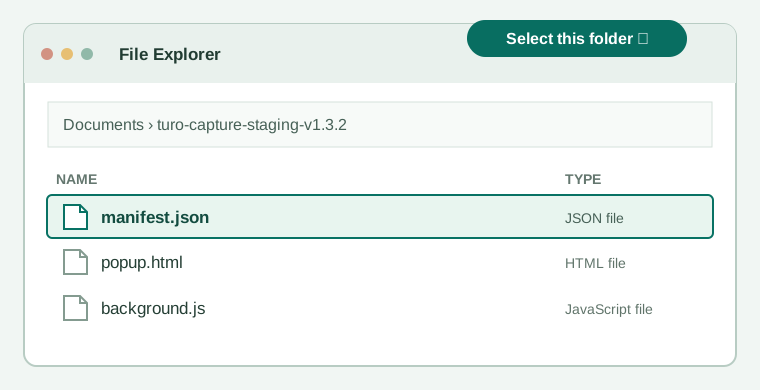
Illustration: select the folder containing manifest.json, not the ZIP or a folder above it. -
Open Chrome’s Extensions page
Open a new tab in Chrome, type
chrome://extensionsin the address bar, and press Enter. You can also click the puzzle-piece icon near the address bar and choose Manage extensions.The
chrome://address must be typed or pasted into Chrome’s address bar; it cannot be opened by clicking a link on this page. -
Turn on Developer mode, then click Load unpacked
On the Extensions page, switch on Developer mode in the top-right corner. A Load unpacked button appears near the top-left. Click it, choose the extracted folder from step 1, and click Select Folder (Windows) or Open (Mac).
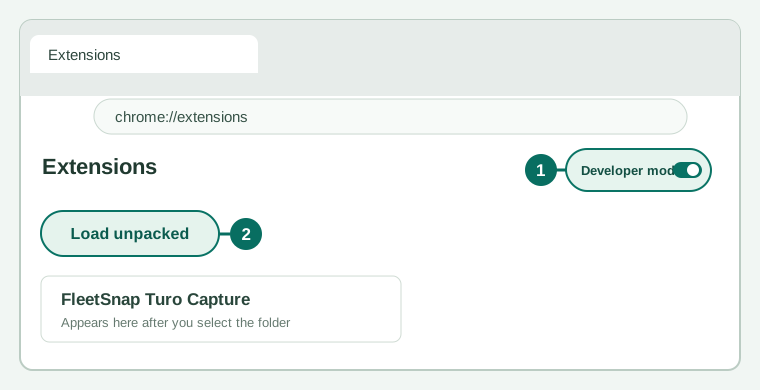
Illustration of the Chrome controls. Their appearance may vary slightly by Chrome version. You should now see a FleetSnap Turo Capture card in Chrome. If Chrome says the manifest is missing, go back and select the folder that directly contains
manifest.json. -
Connect FleetSnap and check the status
Sign in to the matching FleetSnap site in this same Chrome profile: staging.fleetsnap.ai for the staging download, or fleetsnap.ai for the production download.
Click Chrome’s puzzle-piece icon, pin FleetSnap Turo Capture, then click its icon and press Connect. Open or refresh a Turo tab. The extension popup shows the destination under Sending to; Saved increases when captures sync.
Update an installed extension
- Download the newer ZIP for the same environment and extract all its files.
- Copy the files from the new extracted folder into the folder Chrome already loaded. Replace the existing files. Keep
manifest.jsonat the top level; do not add a folder inside the old one. - Open
chrome://extensionsand click Reload on the FleetSnap Turo Capture card. Confirm the version matches the download card above, then refresh any open Turo tabs.
Chrome does not update this manually installed extension automatically. Refreshing a webpage alone does not update the extension.
If something does not work
- No Load unpacked button? Turn on Developer mode at the top right of
chrome://extensions. - Manifest missing or unreadable? Extract the ZIP fully and select the folder that directly contains
manifest.json. - Connect fails? Sign in to the matching FleetSnap site in the same Chrome profile, then try Connect again.
- Upload failed? Captures stay queued for automatic retry. Use Retry upload to try sooner. If the popup asks you to reconnect, sign in to FleetSnap and use Reconnect to FleetSnap.
- Extension disappeared after moving files? Put the folder back, or use Load unpacked to select its new location and reconnect.